A few weeks ago we shipped a one-click way to connect your cobrain to Claude: OAuth instead of copy-pasting access tokens. The response was clear: do this for my other tools too.
Done. The same “Sign in to allow access” flow now works with ChatGPT and Cursor (and, as before, with Claude). No tokens to copy, no JSON to hand-edit. You add the connector, click Allow on a Working Memory consent screen, and your notes are right there in the chat.
Here’s the setup for each.
ChatGPT
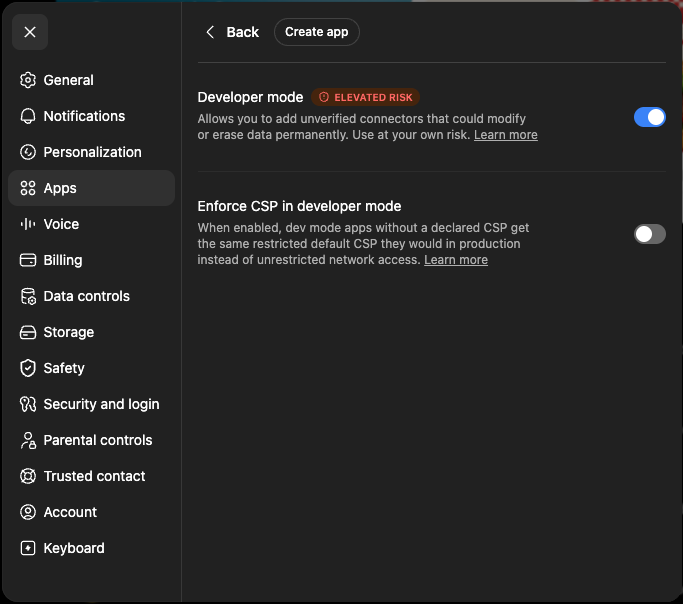
- In ChatGPT (web), open Settings → Apps → Advanced settings and turn on Developer mode. It’s badged “Elevated risk”, since custom MCP connectors are a developer-mode feature.
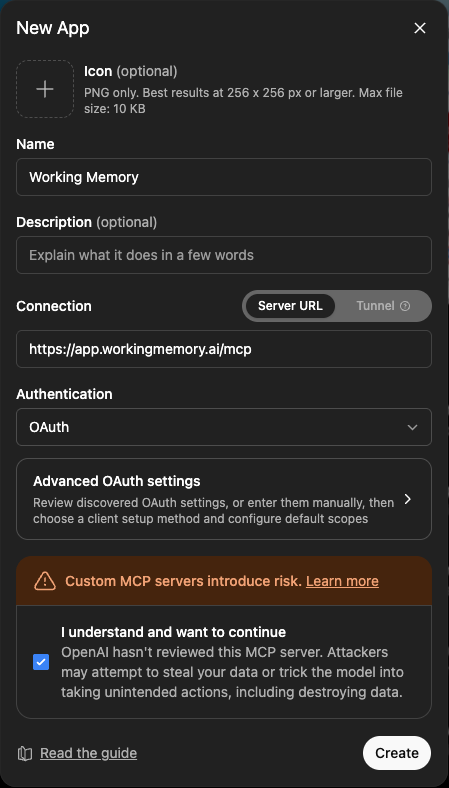
- Back on the Apps screen, choose Create app. Give it a name (e.g. “Working Memory”), set the Server URL to
https://app.workingmemory.ai/mcp, leave Authentication on OAuth, tick “I understand and want to continue”, then click Create.
- Choose Sign in with Working Memory. A consent screen opens: “ChatGPT wants to access your Working Memory”, listing what it can do (read your notes; save and update them). Sign in if you aren’t already, review the permissions, and click Allow.
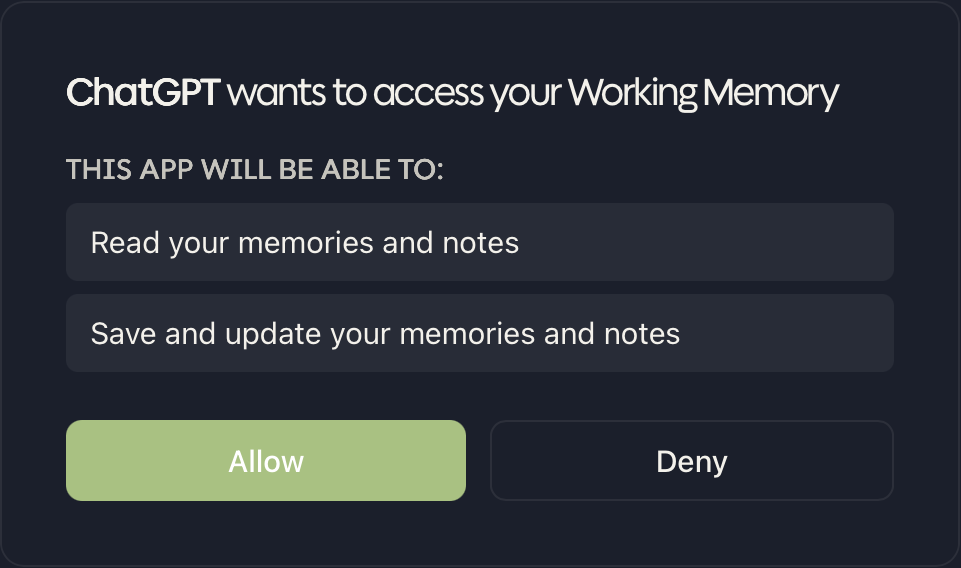
That’s it. You land back in ChatGPT with your cobrain connected.
Cursor
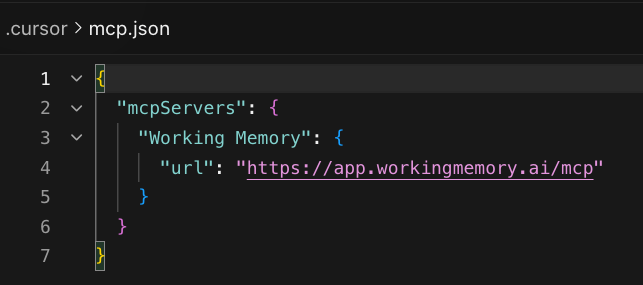
- In Cursor, open Customize → MCPs → New MCP Server. Cursor opens your
mcp.json. - Add the Working Memory server block inside
mcpServers:
"Working Memory": {
  "url": "https://app.workingmemory.ai/mcp"
}
- Back on the MCPs list, click Authenticate next to Working Memory. The same Working Memory consent screen appears; click Allow.
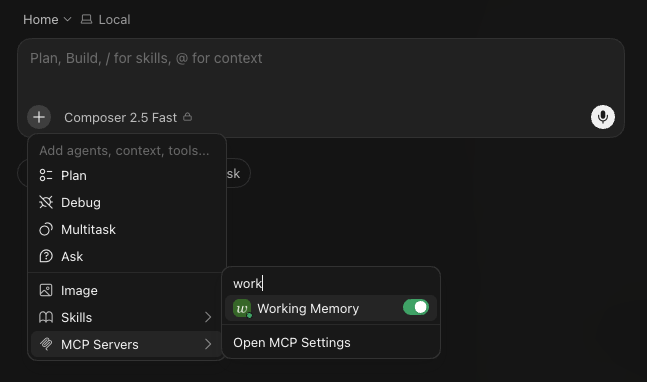
- Start a new chat, open the + menu, and confirm Working Memory appears under MCP Servers.
Claude
Already covered, and still one click:
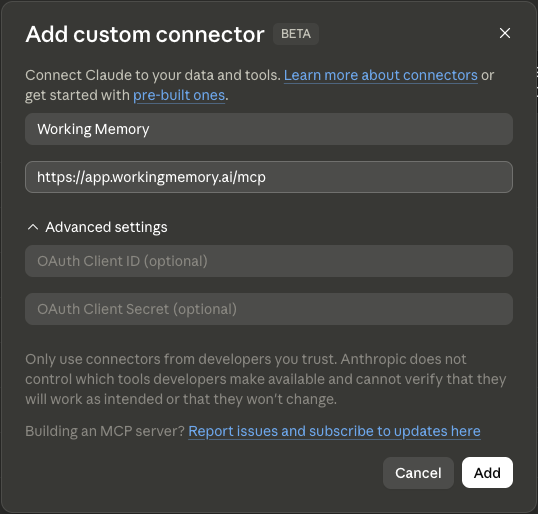
- In Claude Desktop, open Settings → Connectors → Add custom connector and enter
https://app.workingmemory.ai/mcp. - Sign in on the consent screen and click Allow.
What your AI can do once connected
The two tools you’ll interact with most:
search_memory: search your entire history of voice and text notes in natural language.save_memory: capture a new note, task, or reminder straight from the chat.
So you can ask questions that pull from your real history:
“What did I say I wanted to follow up on with the design team?”
…and your AI calls search_memory, finds the note you dictated on your walk last week, and answers with it. Or capture something on the fly:
“Save a note that the Q3 review moved to the 14th.”
…and it syncs to your Working Memory timeline instantly.
Bring your memories with you
Switching AIs, or just adding one, shouldn’t mean starting from a blank slate. If the AI you’ve been working with already knows you, take that along. Two steps:
Ask your old AI what it knows. In the AI that has your history (ChatGPT with its saved memories, a long-running Claude project, wherever), ask:
“What do you know about me? List everything worth remembering: my projects, the people I work with, my preferences, and any open commitments.”
ChatGPT keeps its saved-memory list under Settings → Personalization → Memory → Manage, if you’d rather copy the raw entries instead.
Paste and save. Drop the answer into any AI you’ve connected to Working Memory and say “save this to my working memory.” The pasted text is split into individual memories automatically (projects, people, ideas, admin), and each one is searchable a moment later from every client you’ve connected, not just the one you pasted into.
That’s the point of one memory across AIs: what your old AI knew about you stays yours.
You’re always in control
Connected an app you no longer use? Open Settings → Integrations in the Working Memory app, find it under Connected apps, and revoke it. Access is cut immediately; the app has to ask permission again to reconnect.
Want the full details (Personal Access Tokens for other clients, troubleshooting, and client-specific config)? That lives in our support guide:
Connect Working Memory to your AI via MCP →
Your notes, in whichever AI you think in. No copy-paste required.